Adding a Data Service Module for the TOM Toolkit#
This guide is to walk you step by step through the process of creating a Data Service. This assumes that you want a user interface for querying your data service via a form. Many of these steps can be skipped if your service is only intended to be accessed internally.
Once fully implemented, a dataservice should automatically show up in the proper nav bar drop downs, and be able to query a service via a form, displaying results to a custom table, then finally saving desired results to a TOM’s DB.
Setting up the Basic Data Service:#
First we will build the bare bones of our data service. This is the bare minimum to get the service to show up in the TOM. We’ll start with three pieces of generic code:
Our Query class (an extension of tom_dataservices.dataservice.DataService)
Our Form Class (an extension of tom_dataservices.forms.BaseQueryForm)
An integration point for our data service in
Apps.py
First the actual query class:#
 1from tom_dataservices.dataservices import DataService
 2from my_dataservice.forms import MyServiceForm
 3
 4class MyDataService(DataService):
 5    """
 6    This is an Example Data Service with the minimum required
 7    functionality.
 8    """
 9    name = 'MyService'
10
11    @classmethod
12    def get_form_class(cls):
13        """
14        Points to the form class discussed below.
15        """
16        return MyServiceForm
17
18    def build_query_parameters(self, parameters, **kwargs):
19        """
20        Use this function to convert the form results into the query parameters understood
21        by the Data Service.
22        """
23        return self.query_parameters
24
25    def query_service(self, query_parameters, **kwargs):
26        """
27        This is where you actually make the call to the Data Service.
28        Return the results.
29        """
30        return self.query_results
Your Data Service needs a form:#
1from django import forms
2from tom_dataservices.forms import BaseQueryForm
3
4class MyServiceForm(BaseQueryForm):
5    first_field = forms.CharField(required=False,
6                                  label='An Example Field',
7                                  help_text='Put important info here.')
Adding the integration point:#
 1from django.apps import AppConfig
 2
 3
 4class MyAppConfig(AppConfig):
 5default_auto_field = 'django.db.models.BigAutoField'
 6name = 'my_app'
 7
 8def data_services(self):
 9    """
10    integration point for including data services in the TOM
11    This method should return a list of dictionaries containing dot separated DataService classes
12    """
13    return [{'class': f'{self.name}.my_dataservice.MyDataService'}]
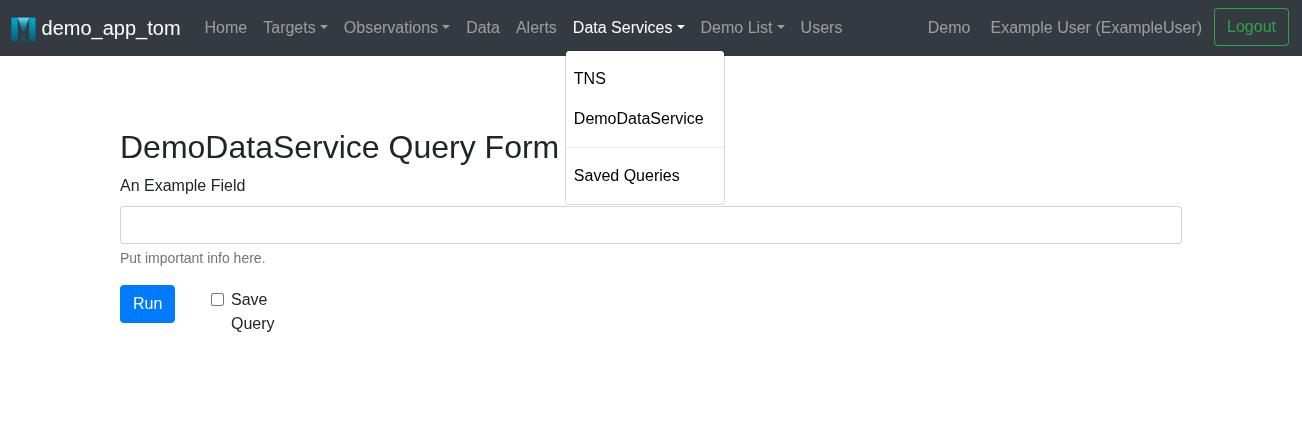
Once all of these are done, you should be able to see your basic form in a test TOM:
Customizing your Data Service:#
The next step is to update our code to have all of the specific features relevant for our data service. Here we will focus on
extending several methods of DataService to perform the specific tasks needed to interface with your data service.
Ultimately there are many things that can be customized for your DataService, and many tools built into the base class
to help you do this. This section will take you through the fundamentals to get you started, but you should review the
full class documentation before you precede.
Using built in Errors and Exceptions#
The TOM Toolkit includes a catch-all error method that will be useful to raise if you want to pass the information back to the view when something doesn’t go as expected:
QueryServiceError#
Raising this error is useful for handling problems with query parameters or query feedback that might cause issues further down the stack.
raise QueryServiceError(f"Target '{target.name}' is not configured for {self.name}.")
Filling out our MyServiceForm#
First, we will need actual fields in our Form. For more on this, see the official Django docs.
DataService.build_query_parameters#
Next, let’s make our build_query_parameters function inside of MyDataService actually do something.
This code is to convert all of the form fields into a data dictionary or set of query parameters that is understood by
the data service (or more specifically our query_service method.)
 1def build_query_parameters(self, parameters, **kwargs):
 2    """
 3    Use this function to convert the form results into the query parameters understood
 4    by the Data Service.
 5    """
 6    data = {
 7        'example_field': parameters.get('first_field')
 8    }
 9
10    self.query_parameters = data
11    return data
In some cases, this can be very straightforward, while in others this can involve complex constructions of query commands. Ultimately this is based on the API or client of your Data Service, and how you chose to name your form fields.
DataService.query_service#
Next we will need to fill out our query_service module. This is the function that actually goes and calls the query
service using the parameters created by build_query_parameters. This function produces query results that can then be
interpreted by query_targets, query_photometry, or other functions to produce specific kinds of results that can be
interpreted by your TOM.
 1def query_service(self, data, **kwargs):
 2        """
 3        This is where you actually make the call to the Data Service.
 4        Return the results.
 5        """
 6        if self.get_urls(url_type='search'):
 7            results = requests.post(self.get_urls(url_type='search'), data, headers=self.build_headers())
 8        else:
 9            results = data_service_client.search(data)
10        self.query_results = results
11        return self.query_results
Again, depending on the nature of your data service, the query_service function could take many different forms.
This may also require you to create a build_headers method, or make use of the urls, get_configuration, or
get_credentials methods. Saving the results to self.query_results could save time in other methods by not requiring
you to redo the query.
DataService.query_targets#
We will just use query_targets as an example. The same ideas apply to any of the individual query functions.
This is the function that pulls useful data from the query results in a way that the TOM understands. In this case, we
will be extracting Target data from the query results and creating a list of dictionaries containing this target data.
 1def query_targets(self, query_parameters, **kwargs):
 2        """
 3        This code calls `query_service` and returns a list of dictionaries containing target results.
 4        This call and the results should be tailored towards describing targets.
 5        """
 6        # I can update my query parameters to include target specific information here if necessary
 7        query_results = self.query_service(query_parameters)
 8        targets = []
 9        for result in query_results:
10            result['name'] = f"MyService:{result['ra']},{result['dec']}"
11            targets.append(result)
12        return targets # This should always be a list of dictionaries.
In this example, we create or modify the name of a query result so we will have something to enter into the TOM.
Line 6 calls the super which will either retrieve self.query_results if it exists or run query_service.
The final output should be a list of dictionaries containing target results.
At this point you should be seeing a list of Targets showing up in your TOM after you perform a query.
DataService.create_target_from_query#
Continuing with our target example, we need to be able to create_target_from_query in order to actually save the
target object resulting from a successful result for query_target above. This function expects a single instance with
the same format as the list of dictionaries created by query_targets and converts that dictionary into a Target Object
returning that unsaved object.
 1from tom_targets.models import Target
 2
 3...
 4
 5def create_target_from_query(self, target_result, **kwargs):
 6        """Create a new target from the query results
 7        :returns: target object
 8        :rtype: `Target`
 9        """
10
11        target = Target(
12            name=target_result['name'],
13            type='SIDEREAL',
14            ra=target_result['ra'],
15            dec=target_result['dec']
16        )
17        return target
Integrating Additional Query Types:#
Above we discussed creating targets from queries, but usually the point of a query is to get data from a data service
beyond the basic target information. This is where we need to build out methods like query_aliases and
query_photometry.
Each of these different kinds of data will require functions in MyDataService titled query_foo() and
create_foo_from_query(). These behave the same way as query_targets and create_target_from_query above, querying
the data service and returning a list of dictionaries in query_foo(), and then translating an instance of that dictionary
into a model object with create_foo_from_query().
Depending on the specifics of your data service, it may be reasonable to call the query_foo() methods independently,
and/or part of query_targets.
Querying Reduced Datums:#
Data from a dataservice that needs to be stored as a ReducedDatum should be handled a little differently.
The specifics of converting the query results into a list of dictionaries is handled by the query_foo() method for that
specific data type (i.e query_photometry()). However, there are a few additional functions you will want to extend
when dealing with ReducedDatums. To do this generally, you may want to override or extend query_reduced_data() but
you can also do this for specific types of reduced data. In this section we will walk you through including photometry
data as an example.
We will start by creating our query:
1def query_photometry(self, query_parameters, **kwargs):
2    """Set up and run a specialized query for a DataService’s photometry service.
3    :returns: photometry_results
4    :rtype: Usually a List of Dictionaries
5    """
6    query_parameters['return_lightcurve'] = True  # Modify query parameters if needed
7    query_results = self.query_service(query_parameters)
8    photometry_results = query_results['lightcurve']
9    return photometry_results
DataService.create_reduced_datums_from_query#
To create the ReducedDatum``s we will need a ``create_reduced_datums_from_query() method. This should take all of the data
types and convert them into ReducedDatum objects. Be sure to use ReducedDatum.objects.get_or_create() to prevent
re-creating existing objects.
 1def create_reduced_datums_from_query(self, target, data=[], data_type='photometry', **kwargs):
 2    """
 3    Create and save new reduced_datums of the appropriate data_type from the query results
 4    Be sure to use `ReducedDatum.objects.get_or_create()` when creating new objects.
 5
 6    :param target: Target Object to be associated with the reduced data
 7    :param data: List of data dictionaries of the appropriate `data_type`
 8    :param data_type: An appropriate data type as listed in tom_dataproducts.models.DATA_TYPE_CHOICES
 9    :return: List of Reduced Datums (either retrieved or created)
10    """
11    reduced_datums = []
12    for datum in data:
13        datum_details = dict(datum)
14        if data_type == 'photometry':
15            # We might have some specific things we want to include based on type.
16            # For Photometry, for example, we need a magnitude, error, and filter to be displayed in the
17            # photometry plot on the target detail page.
18            datum_details['magnitude'] = datum['my_mag']
19            datum_details['error'] = datum['my_magerr']
20            datum_details['limit'] = datum['my_maglim']
21            datum_details['filter'] = datum['my_passband']
22
23        reduced_datum, __ = ReducedDatum.objects.get_or_create(
24            target=target,
25            timestamp=Time(datum['time'], format='iso', scale='utc').datetime,
26            data_type=data_type,
27            source_name=self.name,
28            value=datum_details
29        )
30        reduced_datums.append(reduced_datum)
31    return reduced_datums
DataService.build_query_parameters_from_target#
It can be convenient to build a query just from a target object, as it already exists in the TOM. Thus, it can be
helpful to create a build_query_parameters_from_target() method. This method should take a target object, and return
query parameters that would be understood by your query_service() method. The TOMToolkit uses this method, if it
exists, in several places where we want to update an existing target based on data service data.
 1def build_query_parameters_from_target(self, target, **kwargs):
 2    """
 3    This is a method that builds query parameters based on an existing target object that will be recognized by
 4    `query_service()`.
 5    This can be done by either by re-creating the form fields we set in MyServiceForm and then calling
 6    `self.build_query_parameters()` with the results, or we can reproduce a limited set of parameters uniquely for
 7    a target query.
 8
 9    :param target: A target object to be queried
10    :return: query_parameters (usually a dict) that can be understood by `query_service()`
11    """
12        if 'first' in target.name:
13            form_fields = {'first_field': target.name}
14            query_parameters = self.build_query_parameters(form_fields)
15        else:
16            query_parameters= {
17                'ra_field': target.ra,
18                'dec_field': target.dec,
19                'radius': 0.5
20                }
21        return query_parameters
Polishing Your Data Service:#
At this point, you data service is functional, but may not look quite as nice as you would like in the browser. In this section we will walk you through several important steps to customize the appearance of your dataservice.
Simple vs Advanced Forms:#
By default, your entire form will be displayed on the query page. This can be confusing or less convenient for users looking to make a quick query. For clarity it can be extremely useful to separate the base level functionality for a data service from the much more complex features and search functionality that is possible with many catalogs, brokers, etc. Towards this end, the TOMToolkit offers both simple and advanced forms for a dataservice. By default, an advanced Form will be collapsed when a user first loads the form.
Simple Forms:#
Simple forms are often a single field that will find expected results. Such as a Target name or ID field.
The easiest way to add a simple form is to add the simple_fields method in your form.
 1from django import forms
 2from tom_dataservices.forms import BaseQueryForm
 3
 4class MyServiceForm(BaseQueryForm):
 5    first_field = forms.CharField(required=False,
 6                                  label='An Example Field',
 7                                  help_text='Put important info here.')
 8    ra = forms.FloatField(required=False, min_value=0., max_value=360.,
 9                        label='R.A.',
10                        help_text='Right ascension in degrees')
11    dec = forms.FloatField(required=False, min_value=-90., max_value=90.,
12                        label='Dec.',
13                        help_text='Declination in degrees')
14    radius = forms.FloatField(required=False, min_value=0.,
15                        label='Cone Radius')
16
17    def simple_fields(self):
18        """Return List of fields to be included in the simple form."""
19        return ['first_field']
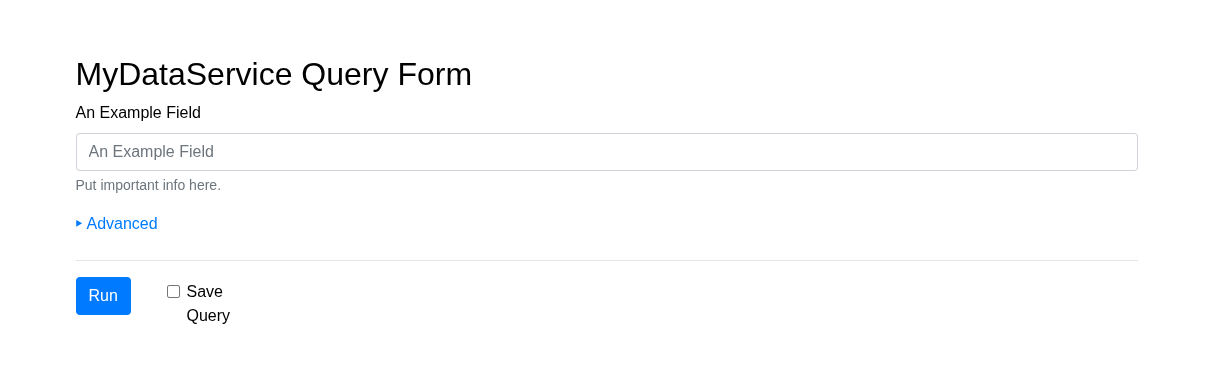
This will automatically pull out any fields returned in the list to be displayed in the default form, and all other fields will be hidden by default under the advanced tab.
Alternatively, for more complex forms and styling, you can write your own form partial.
This consists of adding the get_simple_form_partial() method to MyServiceForm and then creating the partial.
1def get_simple_form_partial(self):
2    """Returns a path to a simplified bare-minimum partial form that can be used to access the DataService."""
3    return 'my_dataservice/partials/myservice_simple_form.html'
1{% load django_bootstrap5 %}
2{% bootstrap_field form.first_field %}
- NOTES:
Here we are just rendering a single field from our form.
See the docs for Django Form Templates and bootstrap5 for help building your partials.
Advanced Forms:#
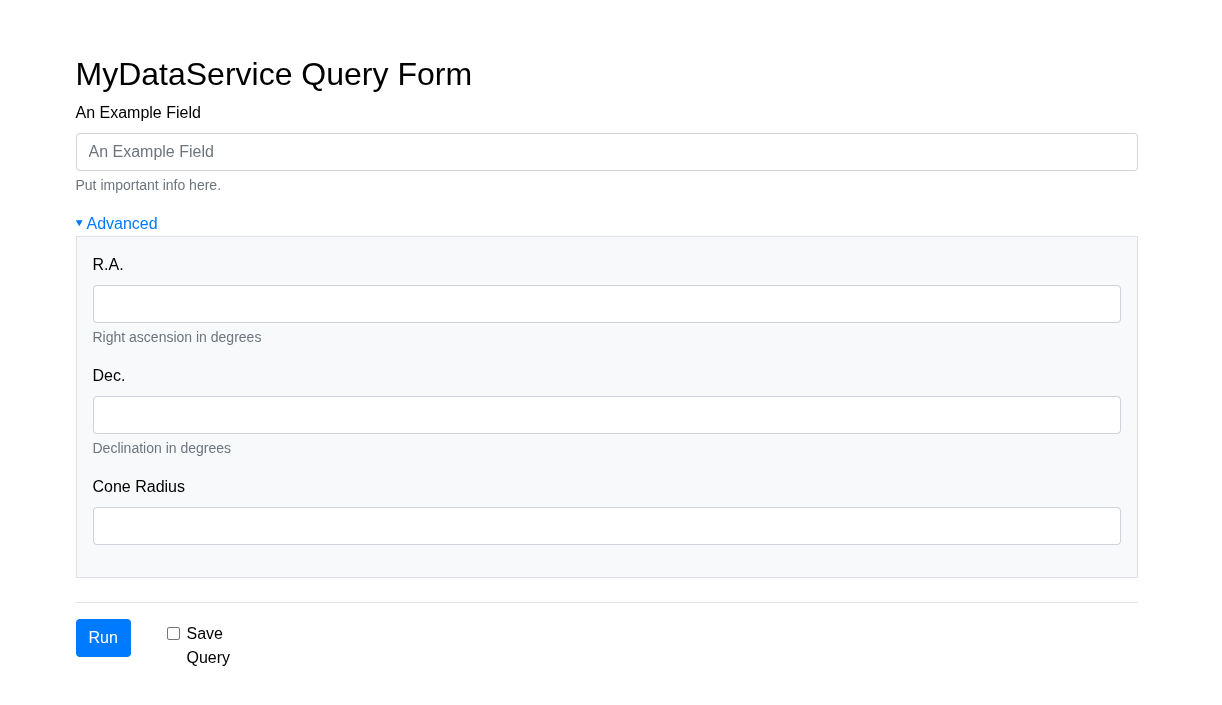
This is where we include all of the complex functionality that advanced users would need access to.
By default this will include all the fields NOT returned with MyServiceForm.simple_fields(). However, for more
more complex forms and styling, we can create a partial just like we did for the simple form above. If we do, though,
we will want to be explicit about NOT including the fields that we included in the simple form.
1def get_advanced_form_partial(self):
2    """Returns a path to a simplified bare-minimum partial form that can be used to access the DataService."""
3    return 'my_dataservice/partials/myservice_advanced_form.hmtl'
1{% load django_bootstrap5 %}
2{% bootstrap_form form exclude='query_name,query_save,first_field' %}
NOTES:
Here we are rendering all the form fields except the one in the simple form and the two default fields that get displayed below the main form.
Note that we are using
bootstrap_forminstead ofbootstrap_fieldwhich we used in the simple form.
Alternatively, if a simple form is included, the entirety of the form will be displayed by default in the advanced section using whatever layout was provided. So you can easily use django_crispy_forms to set a layout instead of creating a partial. If you wish, you can use the built in get_layout() method to customize your crispy forms layout:
 1from django import forms
 2from crispy_forms.layout import HTML, Fieldset, Layout
 3from tom_dataservices.forms import BaseQueryForm
 4
 5class MyServiceForm(BaseQueryForm):
 6    first_field = forms.CharField(required=False,
 7                                  label='An Example Field',
 8                                  help_text='Put important info here.')
 9    ra = forms.FloatField(required=False, min_value=0., max_value=360.,
10                        label='R.A.',
11                        help_text='Right ascension in degrees')
12    dec = forms.FloatField(required=False, min_value=-90., max_value=90.,
13                        label='Dec.',
14                        help_text='Declination in degrees')
15    radius = forms.FloatField(required=False, min_value=0.,
16                        label='Cone Radius')
17
18
19    def get_layout():
20        """Return the layout to be used with the Advanced Query form.
21            You can add HTML or Fields before or after the default form by using
22            `Layout(<<something>>, super().get_layout(), <<something>>)`
23        """
24        layout = Layout(
25            HTML('''
26                <p>
27                My Data Service can also do a cone Search!
28                </p>
29            '''),
30            Fieldset(
31                'Cone Search',
32                Div(
33                    Div(
34                        'ra',
35                        'radius',
36                        css_class='col',
37                    ),
38                    Div(
39                        'dec',
40                        'units',
41                        css_class='col',
42                    ),
43                    css_class="form-row",
44                )
45            ),
46        return layout
Target Results Table:#
By default, all of your results except for reduced_datums will be displayed in the table. You may wish to customize
this display without compromising your results. You can do this by adding a query_results_table. This is specialized
table partial for displaying query results for this data service. To implement this you should set the
query_results_table value in your Data service pointed to the appropriate partial:
 1from tom_dataservices.dataservices import DataService
 2from my_dataservice.forms import MyServiceForm
 3
 4class MyDataService(DataService):
 5    """
 6    This is an Example Data Service with the minimum required
 7    functionality.
 8    """
 9    name = 'MyService'
10    # The path to a specialized table partial for displaying query results
11    query_results_table = 'my_dataservice/partials/myservice_query_results_table.html'
12
13    ...
 1<table class="table table-striped">
 2    <thead>
 3    <tr>
 4        <th><input type="checkbox" id="selectAll"/></th>
 5        <th>Name</th>
 6        <th>RA</th>
 7        <th>Dec</th>
 8    </tr>
 9    </thead>
10    <tbody>
11    {% for result in results %}
12    <tr>
13        <td><input type="checkbox" name="selected_results" value="{{ result.id }}"/></td>
14        <td>{{ result.name}}</td>
15        <td>{{ result.ra }}</td>
16        <td>{{ result.dec }}</td>
17    </tr>
18    {% endfor %}
19    </tbody>
20</table>