Building Interactive HTMX Tables
TOM Toolkit provides base classes for building interactive data tables with filtering, sorting, and pagination that avoid full-page reloads using HTMX.
Three model-independent base classes in tom_common.htmx_table handle
common concerns so that creating a new HTMX-driven table for any model is largely
a configuration task. The provided classes are:
HTMXTable- This class extendsdjango_tables2.Tableto add HTMX attributes to certain HTML elements, handle checkboxes, etc. Your subclass will define your table, specifying the Model supplying data to your table and the fields that will be displayed.
HTMXTableFilterSet- Your subclass will define data filters and add HTMX elements to update your table as the filters change.
HTMXTableViewMixin- This mix-in class must be added to your ListView subclasses that present their data inHTMXTablesubclasses. It recognizes AJAX (HTMX) requests and adds pagination data to your ListView’s context.
Creating a Basic HTMX Table for Your Model
This section walks through the three pieces you need to get started: a Table class, a View, and a template. The Target list page provides an example implementation for each step.
Step 1: Define the Table
A tables.py module in your app or custom_code is good place to
define your HTMXTable.
Subclass HTMXTable in tables.py. The base class
provides the Bootstrap/HTMX template, row-selection checkboxes, and
all the Meta.attrs needed for sorting and pagination to work via
HTMX. [1] Your subclass Meta.attrs must specify the model and fields
to be displayed.
 1from tom_common.htmx_table import HTMXTable  # HTMXTable is a django_tables2.Table subclass
 2from myapp.models import Observation  # for example
 3
 4class ObservationTable(HTMXTable):
 5
 6    # linkify makes the entry in the "name" column a link to the model detail page.
 7    name = tables.Column(
 8        linkify=True,
 9        attrs={"a": {"hx-boost": "false"}}
10    )
11
12    class Meta(HTMXTable.Meta):
13        model = Observation
14        fields = ['selection', 'name', 'date', 'status']
NOTES:
Line 14: Include
'selection'infieldsto enable row-selection checkboxes. All of the other fields should be model fields for your chosen model.Line 8: Use
linkify=Trueon a column to turn cell values into links to the object’s detail page. If your model does not have a detail page, or aget_absolute_url()defined, including this will result in aTypeError.Line 9: The
hx-boost="false"attribute ensures that clicking the link triggers a normal page navigation (to the object’s detail page) rather than being intercepted by HTMX. [2]
See the example in tom_targets/tables.py.
Step 2: Update the View
Add HTMXTableViewMixin before your existing List (or Filter) view. The mixin extends
django_tables2.SingleTableMixin and handles HTMX request detection
and template selection. It also adds record_count and
empty_database to the template context. [4]
 1from django.views.generic.list import ListView
 2
 3from tom_common.htmx_table import HTMXTableViewMixin
 4from myapp.models import Observation
 5from myapp.tables import ObservationTable
 6
 7class ObservationListView(HTMXTableViewMixin, ListView):
 8    template_name = 'myapp/observation_list.html'
 9    model = Observation
10    table_class = ObservationTable
11    paginate_by = 20
12    ordering = ['-date']
NOTES:
If you are updating an existing List/ FilterView then the HTMXTableViewMixin, line 11, defining
table_class and the appropriate imports are the only changes you should need to make.
See the example in tom_targets/views.py.
Step 3: Set Up the Template
You will need to create or modify the template page used to display your table. The bootstrap HTMX template (for sorting and pagination) and a default partial template are provided by the base classes.
Table page template
The main table template includes a progress indicator and the table container.
The Table container includes the default partial template for generating the table. We will discuss overriding
this a little later.
 1{% extends 'tom_common/base.html' %}
 2
 3{% block title %}Observations{% endblock %}
 4
 5{% block content %}
 6<div class="row">
 7  <div class="col-md-12">
 8    <h2>{{ record_count }} Observation{{ record_count|pluralize }}</h2>
 9
10    {# Progress indicator (CSS provided by TOM Toolkit base template) #}
11    <div class="progress">
12        <div class="indeterminate"></div>
13    </div>
14
15    {# Table container -- this is the HTMX swap target #}
16    <div class="table-container">
17        {% include table.get_partial_template_name %}
18    </div>
19  </div>
20</div>
21{% endblock content %}
See the reference implementation in
tom_targets/templates/tom_targets/target_list.html.
At this point you should have an interactive table with sortable columns and pagination!
Add Search Bar
Next we will add search functionality to our table. We will start with a simple search bar and add more features later. This requires 3 steps:
Creating the basic
FilterSetAdding the
FilterSetto ourViewAdding the
Formto ourTemplate
Step 1: Create the FilterSet
Subclass HTMXTableFilterSet from tom_common.htmx_table. The base
class provides a General Search text field (query) with debounced
HTMX attributes already configured. This general search will query all non-ForeignKey fields in your model by default.
You can override general_search() with your model-specific search logic if you require more advanced functionality.
1from tom_common.htmx_table import HTMXTableFilterSet
2from myapp.models import Observation
3
4class ObservationFilterSet(HTMXTableFilterSet):
5
6    class Meta:
7        model = Observation
8        fields = []
NOTES:
The General Search fires after a short (debounced) pause in typing.
For now we are going to leave the fields empty. If you want to add more complex filtering options, we will add fields here later.
Step 2: Add FilterSet to the View
Next we need to add the FilterSet to the view.
Since we are adding filters, we can no longer rely on a simple ListView, and must use a FilterView instead.
Note the highlighted changes.
 1from django_filters.views import FilterView
 2
 3from tom_common.htmx_table import HTMXTableViewMixin
 4from myapp.models import Observation
 5from myapp.tables import ObservationTable
 6from myapp.filters import ObservationFilterSet
 7
 8class ObservationListView(HTMXTableViewMixin, FilterView):
 9    template_name = 'myapp/observation_list.html'
10    model = Observation
11    table_class = ObservationTable
12    filterset_class = ObservationFilterSet
13    paginate_by = 20
14    ordering = ['-date']
Step 3: Add your Form to the Template
Finally, we will head back to our primary table page template and insert the form with the relevant HTMX.
 1{% extends 'tom_common/base.html' %}
 2{% load crispy_forms_tags %}
 3
 4{% block title %}Observations{% endblock %}
 5
 6{% block content %}
 7<div class="row">
 8  <div class="col-md-12">
 9    <h2>{{ record_count }} Observation{{ record_count|pluralize }}</h2>
10
11    <hr>
12    {# Filter form -- id must match hx-include in the Table's Meta.attrs #}
13    <form id="filter-form" class="mb-3"
14          hx-get="{{ request.get_full_path }}"
15          hx-target="div.table-container"
16          hx-swap="outerHTML"
17          hx-indicator=".progress">
18        {% crispy filter.form %}
19    </form>
20
21    {# Progress indicator (CSS provided by TOM Toolkit base template) #}
22    <div class="progress">
23        <div class="indeterminate"></div>
24    </div>
25
26    {# Table container -- this is the HTMX swap target #}
27    <div class="table-container">
28        {% include table.get_partial_template_name %}
29    </div>
30  </div>
31</div>
32{% endblock content %}
Notes:
Line 13: The
id="filter-form"must match the"hx-include": "#filter-form"inHTMXTable.Meta.attrsso that filter values are preserved during sorting and pagination. This is handled in the baseHTMXTablebut these values could be overwritten if multiple tables were being used on the same page. [5]
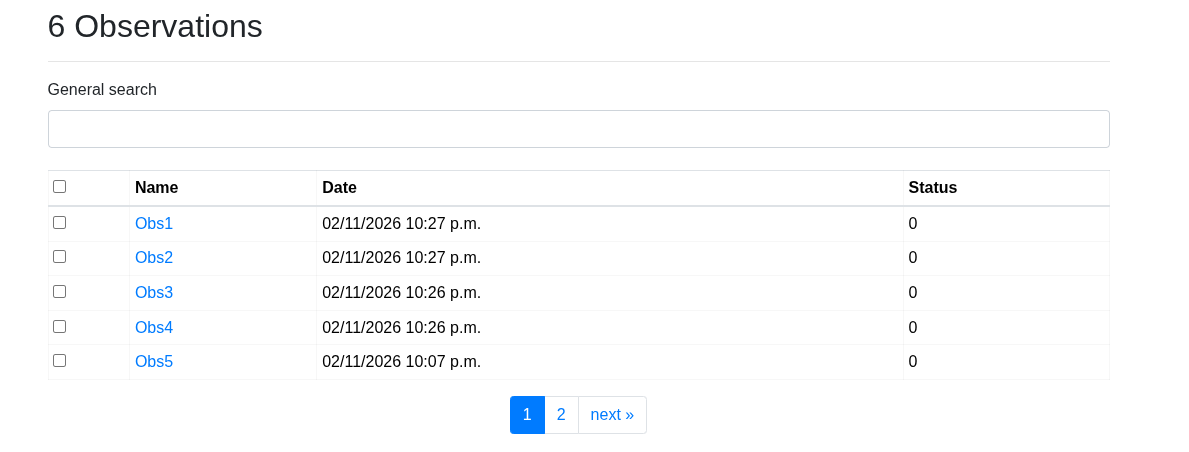
Now there should be a General Search Bar above your table:
Customization Options
We’ve got a basic sortable table with General Search Bar. If this is all you need, great! You’re done! But if you want to take advantage of some of the more advanced features, these next sections will focus on how to make these tools more specific to your use case.
Adding More Filters
The default general filter is great, but maybe you want to search specific fields or other more complex parameters.
To do this we will need to modify our custom FilterSet.
Let’s start by adding a dropdown selection for “status” to our filter list:
 1import django_filters
 2from django import forms
 3
 4from tom_common.htmx_table import HTMXTableFilterSet, htmx_attributes_instant
 5from myapp.models import Observation
 6
 7class ObservationFilterSet(HTMXTableFilterSet):
 8
 9    status = django_filters.ChoiceFilter(
10        choices=Observation.OBSERVATION_STATUS_CHOICES,
11        widget=forms.Select(attrs={htmx_attributes_instant})
12    )
13
14    class Meta:
15        model = Observation
16        fields = ['status']
NOTES:
Line 4: We want to import our standard HTMX attributes that link this filter to the table. The TOMToolkit provides 3 default options:
htmx_attributes_instantfor triggering instant changes. Here we want the table to update immediately upon selection.htmx_attributes_onenterfor triggering table changes when the user hits enter. This is best used for complicated fields where a search doesn’t make sense until all of the data is in.htmx_attributes_delayed`for triggering changes after a short (200ms) delay. We use this for character fields where a partial input is still viable. [3]
Lines 9: See the django-filter documentation for more information. Be sure to update the widget type on line 11 (
forms.Select) to one that makes sense with your filter. See Django Widgets for options.Line 10: This should be whatever choices are for the field. You can manually put a in a set of choices if you want:
((1, 'Active'), (0, 'Inactive'))Line 11: This is where we include the HTMX attributes for this field that allow them to update the table without reloading the whole page.
Line 16: Here we include the new field for this filter. All of the fields listed here will show up in a collapsed “Advanced” section by default.
You should now see a new “Advanced” collapsible menu appear under your general search bar containing all of your new filters.
These simple filters are easy to include and update just by referencing a different field/filter type. For example if we wanted to add a search field for the name as well, we would change the following:
 1import django_filters
 2from django import forms
 3
 4from tom_common.htmx_table import HTMXTableFilterSet, htmx_attributes_instant, htmx_attributes_delayed
 5from myapp.models import Observation
 6
 7class ObservationFilterSet(HTMXTableFilterSet):
 8
 9    status = django_filters.ChoiceFilter(
10        choices=Observation.OBSERVATION_STATUS_CHOICES,
11        widget=forms.Select(attrs={**htmx_attributes_instant})
12    )
13
14    name = django_filters.CharFilter(
15        lookup_expr='icontains',
16        widget=forms.TextInput(attrs={**htmx_attributes_delayed, 'placeholder': 'Observation Name'})
17    )
18
19    class Meta:
20        model = Observation
21        fields = ['name', 'status']
NOTES:
Line 15: This line will make it so the query returns observations where the name contains the input. By default, without this line, it must be an exact match.
Line 16: We can add other attributes to the form field by simply appending them to the dictionary. Here we add placeholder text that will show up in the field before an actual search value is provided.
Now, both fields should show up in the advanced section and the resulting search will use BOTH filters, effectively
providing an AND between both of them and the general search, only returning results that match all filters.
Advanced Filters
Sometimes we want to do something a little more complicated than what the basic filters provide. For this we will need to write our own functions. Let’s make a filter for retrieving only recent observations. This will take the form of a checkbox in the advanced section. Note: We’ve removed the other filters for simplicity, but the advanced filters will work in concert with the others.
 1from datetime import timedelta, datetime
 2
 3import django_filters
 4from django import forms
 5
 6from tom_common.htmx_table import HTMXTableFilterSet, htmx_attributes_instant,
 7from myapp.models import Observation
 8
 9class ObservationFilterSet(HTMXTableFilterSet):
10
11    def get_recent(self, queryset, name, value):
12        """
13        Retrieve recent observations from within the last 24 hours
14
15        :param queryset: The current filtered queryset. By filtering on this queryset,
16            we respect the filters that precede this method in the filter chain.
17        :param name: The name of the filter field calling this method (e.g. 'recent').
18        :param value: The user's input from the form field.
19
20        :Return queryset: Filtered queryset
21        """
22        if not value:
23            return queryset  # early return
24
25        yesterday = datetime.now() - timedelta(days = 1)
26        return queryset.filter(date__gt=yesterday)
27
28    recent = django_filters.BooleanFilter(
29        label='New Observations',
30        method = 'get_recent',
31        help_text = 'Include only observations from within the last 24 hours',
32        widget=forms.CheckboxInput(attrs={**htmx_attributes_instant})
33    )
34
35    class Meta:
36        model = Observation
37        fields = ['recent']
NOTES:
Lines 11-26: We need to provide a function that performs our arbitrary query.
line 31: We can add help text to our fields as well.
Including Model Properties In the Table Columns
To include a model property (a model method tagged with the @property tag) we need to be a little cautious.
Because the calculated properties are not present in the DB, and therefore are not as easy to sort on.
Unsortable Properties
If you don’t want to sort on a property, just have it displayed in the table, then it is fairly simple. Here we include
observation.example_property in our table:
 1from tom_common.htmx_table import HTMXTable  # HTMXTable is a django_tables2.Table subclass
 2from myapp.models import Observation  # for example
 3
 4class ObservationTable(HTMXTable):
 5
 6    example_property = tables.Column('Example Property Verbose Name', orderable=False)
 7
 8    class Meta(HTMXTable.Meta):
 9        model = Observation
10        fields = ['selection', 'name', 'date', 'example_property', 'status']
NOTES:
Line 6: We set
orderable = Falseto prevent errors when trying to sort this as a DB field.
Sortable Properties
Things get a bit more complex when we try to sort by properties. See the django_tables2 docs for more specifics, but basically we have to
build our own sorting method using python and store the primary keys in the proper order. The TOMtoolkit offers a basic
version of this via HTMXTable.model_property_ordering. The usage of this method is demonstrated below, but caution
should be used before implementing this. This is very expensive for large databases, and should only be done if your
table won’t ever hold too many objects.
 1from django.db.models import Case, When
 2
 3from tom_common.htmx_table import HTMXTable  # HTMXTable is a django_tables2.Table subclass
 4from myapp.models import Observation  # for example
 5
 6class ObservationTable(HTMXTable):
 7
 8    example_property = tables.Column('Example Property Verbose Name', orderable=True)
 9
10    def order_example_property(self, queryset, is_descending):
11        return self.model_property_ordering(queryset, is_descending, model_property='example_property')
12
13    class Meta(HTMXTable.Meta):
14        model = Observation
15        fields = ['selection', 'name', 'date', 'example_property', 'status']
NOTES:
Line 10 and 11: Update these line with your property.
Formatting Our Form
So far we have relied on the default formatting with the general Search bar above our hidden advanced filters, and the
different advanced filters sorting themselves into rows and columns in the order they are entered into our
Meta.fields. We can customize this by overwriting our default form layout. Consult
django-crispy-forms for details on how to build a
Layout. Here we will include most of the same infrastructure as before, but put each form field in its own row:
1from crispy_forms.layout import Layout, Div, Row, Column, HTML
2import django_filters
3from django import forms
4
5from tom_common.htmx_table import HTMXTableFilterSet, htmx_attributes_instant, htmx_attributes_delayed
6from myapp.models import Observation
7
8class ObservationFilterSet(HTMXTableFilterSet):
9
10 status = django_filters.ChoiceFilter(
11 choices=Observation.OBSERVATION_STATUS_CHOICES,
12 widget=forms.Select(attrs={**htmx_attributes_instant})
13 )
14
15 name = django_filters.CharFilter(
16 lookup_expr='icontains',
17 widget=forms.TextInput(attrs={**htmx_attributes_delayed, 'placeholder': 'Observation Name'})
18 )
19
20 @property
21 def form(self):
22 if not hasattr(self, '_form'):
23 self._form = super().form
24 self._form.helper.layout = Layout(
25 Row(
26 Column('query', css_class='form-group col-md-3'), # This is how we include the General Search
27 ),
28 HTML("""
29 <div class="row">
30 <div class="col-md-12 mb-2">
31 <a class="btn btn-link p-0" data-toggle="collapse"
32 href="#advancedFilters"
33 role="button" aria-expanded="false"
34 aria-controls="advancedFilters">Advanced ›</a>
35 </div>
36 </div>
37 """),
38 Div(
39 Row(
40 Column('name', css_class='form-group col-md-3'),
41 ),
42 Row(
43 Column('status', css_class='form-group col-md-3'),
44 ),
45 css_class='collapse',
46 css_id='advancedFilters',
47 )
48 )
49 return self._form
50
51 class Meta:
52 model = Observation
53 fields = ['name', 'status']
NOTES:
Lines 28-37, 45-46: This handles the collapsible window.
lines 40 and 43: Here we handle our fields,
nameandstatus.
See the example in tom_targets/filters.py.
Customizing General Search
The default General search is quite broad and might even include fields that you don’t want included in the table. There are several options for customizing this search functionality.
The HTMXTableFilterSet base class provides three ways to customize
the General Search behavior, in order of simplicity.
Override general_search()
The most direct approach. Override the method in your HTMXTableFilterSet subclass:
 1from django.db.models import Q
 2
 3from tom_common.htmx_table import HTMXTableFilterSet
 4from myapp.models import Observation
 5
 6class ObservationFilterSet(HTMXTableFilterSet):
 7
 8    def general_search(self, queryset, name, value):
 9    """This general_search method searches the ``name`` and ``observer.username``
10    Model fields for the text in the ``query`` CharField of the ``FilterSet``.
11    """
12        if not value:
13            return queryset
14        return queryset.filter(
15            Q(name__icontains=value) |
16            Q(observer__username__icontains=value)
17        )
18
19    class Meta:
20        model = Observation
21        fields = []
Settings-Based Override (GENERAL_SEARCH_FUNCTIONS)
Register a standalone function in settings.py without subclassing
anything. This is useful in a custom_code app where you want to
change the search behavior for an existing TOM Toolkit model.
GENERAL_SEARCH_FUNCTIONS = {
    'tom_targets.Target': 'custom_code.search.my_target_search',
}
 1from django.db.models import Q
 2
 3def my_target_search(queryset, name, value):
 4    """
 5        Change the existing general search function on the Target List page to include aliases as well as
 6        target names.
 7    """
 8    if not value:
 9        return queryset
10    return queryset.filter(
11        Q(name__icontains=value) |
12        Q(aliases__name__icontains=value)
13    ).distinct()
The key to the GENERAL_SEARCH_FUNCTIONS dictionary is 'app_label.ModelName' (e.g. 'tom_targets.Target')
and the value is a dotted path to a callable with the signature
(queryset, name, value) -> QuerySet. If a matching entry exists in
GENERAL_SEARCH_FUNCTIONS, it takes priority over the FilterSet’s
general_search() method.
Override get_general_search_function()
For full control, override get_general_search_function() in a
FilterSet subclass. This lets you return any callable based on runtime
conditions.
 1from tom_targets.filters import TargetFilterSet
 2from django.db.models import Q
 3
 4class CustomTargetFilterSet(TargetFilterSet):
 5    """Override the general search without changing the View."""
 6
 7    def get_general_search_function(self):
 8        return self.my_custom_search
 9
10    def my_custom_search(self, queryset, name, value):
11        """
12            Change the existing general search function on the Target List page to include aliases as well as
13            target names.
14        """
15        if not value:
16            return queryset
17        return queryset.filter(
18            Q(name__icontains=value) |
19            Q(aliases__name__icontains=value)
20        ).distinct()
Then point your view at the custom FilterSet:
1from tom_targets.views import TargetListView
2from custom_code.filters import CustomTargetFilterSet
3
4class CustomTargetListView(TargetListView):
5    filterset_class = CustomTargetFilterSet
General Search Examples
Note: These examples are given in the context of modifying the general search functionality, but could just as easily be used on their own to define one of your Advanced Filters described above.
Multi-field search
Using Django’s Q objects
(docs):
def general_search(self, queryset, name, value):
    if not value:
        return queryset
    return queryset.filter(
        Q(name__icontains=value) |
        Q(description__icontains=value) |
        Q(observer__username__icontains=value)
    )
Type-based search
Detect numeric input and search coordinate fields:
from decimal import Decimal, InvalidOperation

def general_search(self, queryset, name, value):
    if not value:
        return queryset

    if value.replace(".", "", 1).replace("-", "", 1).isdigit():
        try:
            numeric_value = Decimal(value)
            return queryset.filter(
                Q(ra__icontains=numeric_value) |
                Q(dec__icontains=numeric_value)
            )
        except (InvalidOperation, ValueError):
            pass

    return queryset.filter(Q(name__icontains=value))
Comma-separated search
With OR logic:
def general_search(self, queryset, name, value):
    if not value:
        return queryset

    # extract search terms from the input value
    terms = [term.strip() for term in value.split(',')]
    q_objects = Q()
    for term in terms:
        q_objects |= (
            Q(name__icontains=term) |
            Q(aliases__name__icontains=term)
        )
    return queryset.filter(q_objects).distinct()
Overwriting the Table Partial
The base class provides a default partial template at
tom_common/partials/htmx_table_partial.html that renders the table
and shows a generic empty-state (no data) message.
If you need a custom partial (e.g. model-specific empty-state messages),
create one and set partial_template_name on your Table subclass:
 1from tom_common.htmx_table import HTMXTable
 2from myapp.models import Observation
 3
 4class ObservationTable(HTMXTable):
 5
 6    # specify the path to your custom partial for you table
 7    partial_template_name = "myapp/partials/observation_table_partial.ht
 8
 9    class Meta(HTMXTable.Meta):
10        model = Observation
11        fields = ['name', 'date', 'status']
 1{% load render_table from django_tables2 %}
 2
 3{% render_table table %}
 4
 5{% if not table.data %}
 6    <div class="alert alert-info mt-3">
 7        {% if empty_database %}
 8            No observations in the database yet.
 9        {% else %}
10            No observations match those filters.
11        {% endif %}
12    </div>
13{% endif %}
See the reference implementation in
tom_targets/templates/tom_targets/partials/target_table_partial.html.
Note: tom_common/partials/htmx_table_partial.html contains the javascript necessary to make the check box selection
work properly. If you intend to include checkboxes, you will want to copy this script into your partial as well.
Best Practices
FilterSet``s pass a queryset from Filter to Filter. So,
always return the queryset unchanged when ``value
is emptyUse
.distinct()when searching across related model fields
Troubleshooting
- HTMX returns the full page instead of the partial
Check that
django_htmx.middleware.HtmxMiddlewareis in yourMIDDLEWAREsetting and that your view includesHTMXTableViewMixin.- Filters are lost when sorting or paginating
Ensure your filter form has
id="filter-form"(matching the"hx-include": "#filter-form"inHTMXTable.Meta.attrs).- Progress indicator does not appear
Verify that
<div class="progress"><div class="indeterminate"></div></div>is present in your main page template and thathx-indicator=".progress"is set on the interactive elements.- General search is not filtering results
Check that your FilterSet subclasses
HTMXTableFilterSetand thatgeneral_search()returns a filtered queryset (notNone).
Where to Find More Information
Footnotes